
Skip to content

Parents

See what your child learns each week.

The parent account comes from the school, on a slip with a code and a password. No email, no account to create: you see the lessons, homework, tests, learning minutes, the gradebook and medals.

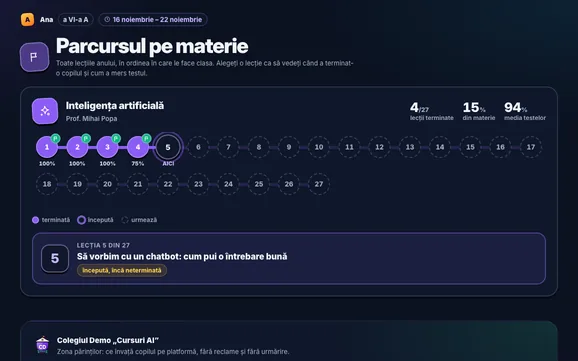
Your child’s path in grade 6: a stop for each lesson of the year, as on the parent’s home page (an example student)Your child’s path in grade 6: a stop for each lesson of the year, as on the parent’s home page (an example student)

Signing in

One slip, no account to create

  1. The slip comes from the schoolThe form teacher prints it from the app and you get it through your child: a parent code (like K7M4-Q2XP) and a password.
  2. Go to app.school-ai.roChoose “I’m a parent”, type the code and the password and press “Sign in”. No email address, no account to create.
  3. One slip for the whole familyIt works on each parent’s phone and laptop. The session closes after 90 minutes without activity and after 12 hours at most.
  4. A brother or sister at the same schoolAdd them from “Account and email” → “Add another child”, with the code and password on their own slip.

Home

The first page: your child’s week at a glance

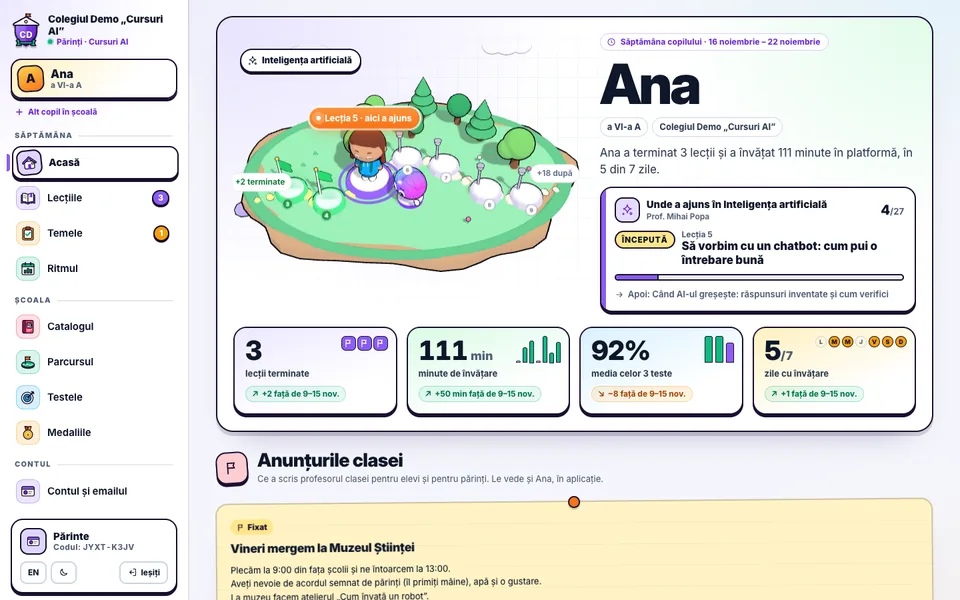
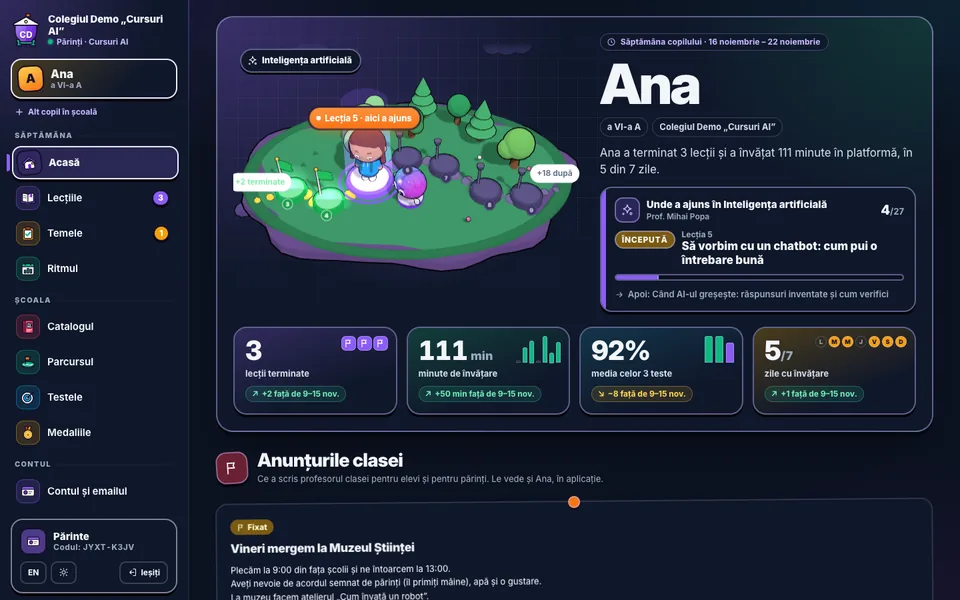
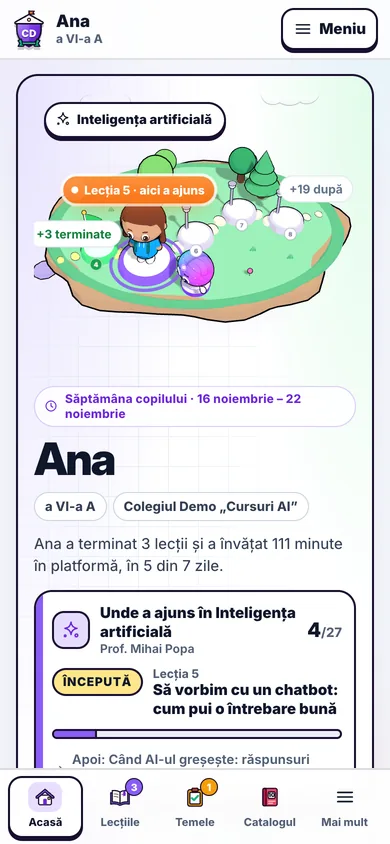
The real start page, from the demo school (fictitious names); the numbers cover the last 7 days, up to yesterday. On a phone the menu sits at the bottom: “Home”, “Lessons”, “Assignments”, “Gradebook” and “More”.

The parent’s start page: the subject island, the week in numbers and the class announcementsThe parent’s start page: the subject island, the week in numbers and the class announcements
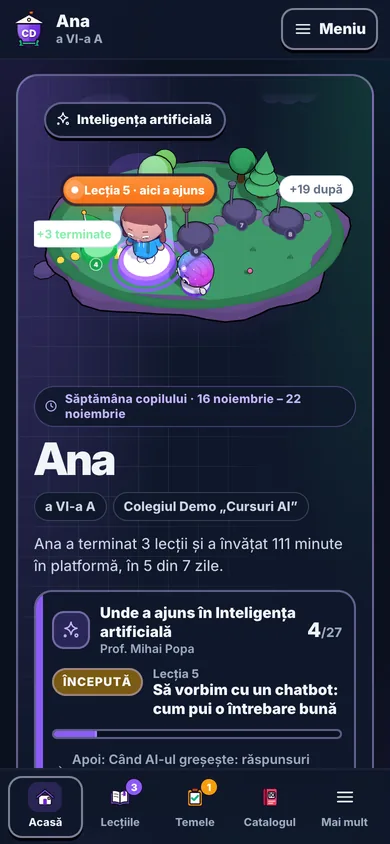
The same start page on a phone, with the menu at the bottomThe same start page on a phone, with the menu at the bottom
  1. The subject’s islandThe same 3D island your child sees, with the lesson reached and a flag on each finished one.
  2. The week in one sentenceFor example, that Ana finished 3 lessons and learned for 111 minutes, on 5 of the 7 days.
  3. Where they areThe subject’s teacher, the lessons finished out of the year’s, the current one and the next.
  4. Four numbers, only against your childLessons, minutes, the test average and learning days, against the same child’s previous 7 days. Never against classmates.
  5. Class announcementsOnly those the teacher marks “Also for parents”. You read them; there is no reply from the app.

The pages

The other eight pages, as they look

The side menu groups them by the week, the school and the account. Choose a page to see it, with the labels you will find in the app.

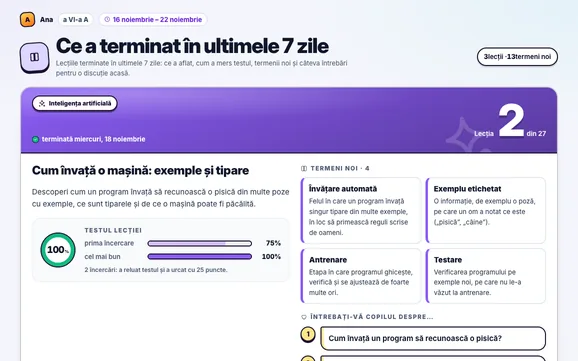
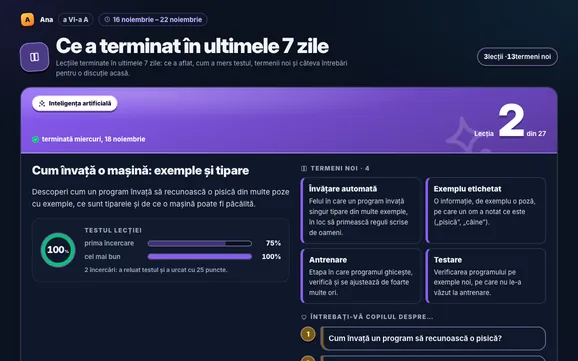
The “Lessons” page in the parent accountThe “Lessons” page in the parent account

LessonsWhat they finished in the last 7 days

  • A card for each finished lesson: “Lesson 2 of 27”, the day and a short summary.
  • “Lesson quiz”: the first-try score, the best one and how many tries it took.
  • “New words” from the lesson’s glossary and “Ask your child about…”: two or three questions for a talk at home.
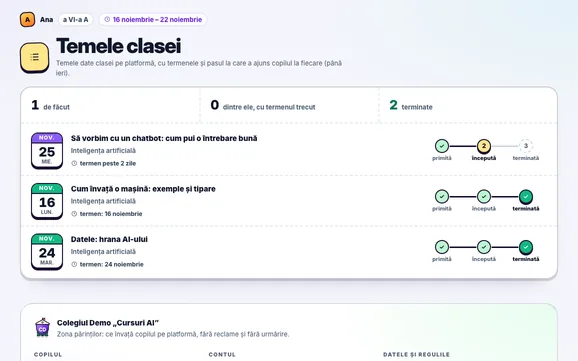
The “Assignments” page in the parent accountThe “Assignments” page in the parent account

AssignmentsThe class’s assignments

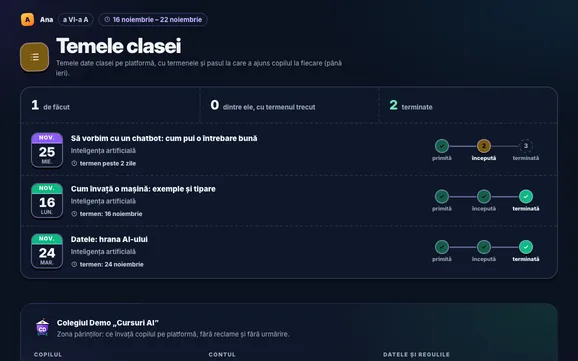
  • The assignments given on the platform, with the due day: in 2 days, today, 3 days ago.
  • For each one, the step your child has reached: set, started, finished.
  • At the top: how many are to do, how many are overdue and how many are finished.
The “Gradebook” page in the parent accountThe “Gradebook” page in the parent account

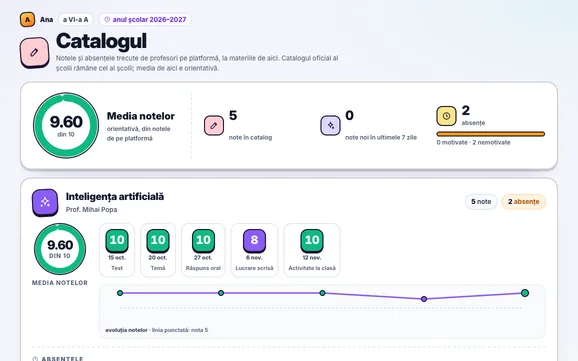
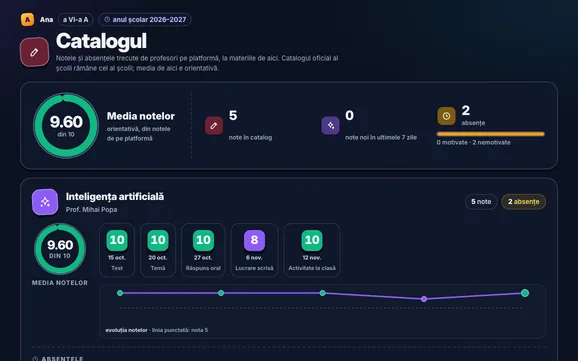
GradebookGrades and absences

  • The grades teachers record on the platform, each with the day and the label the teacher gave it.
  • An indicative average for each subject and the chart of the grades; absences, excused or unexcused.
  • The school’s official register stays the school’s; a wrong grade is corrected by the teacher who recorded it.
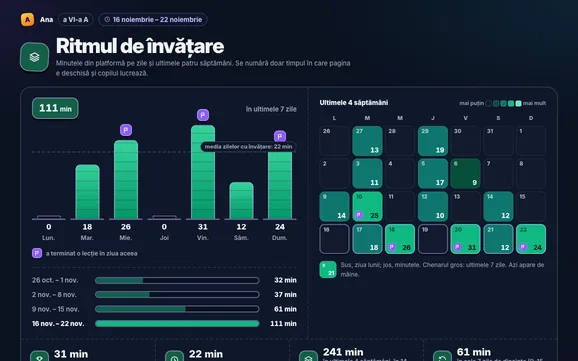
The “Rhythm” page in the parent accountThe “Rhythm” page in the parent account

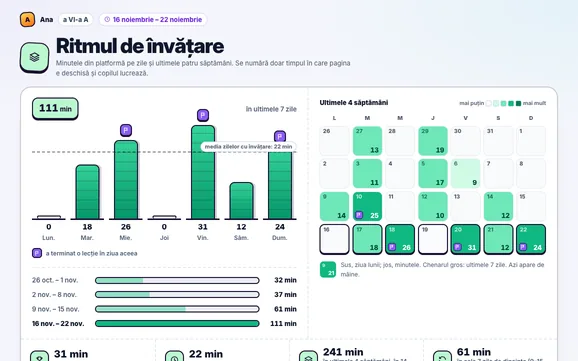
RhythmLearning rhythm

  • The minutes of each day of the week and the calendar of the last 4 weeks, from “less” to “more”.
  • The longest day and how long your child learns on an average learning day.
  • Only the time when the page is open and your child is working counts. Days, never hours.
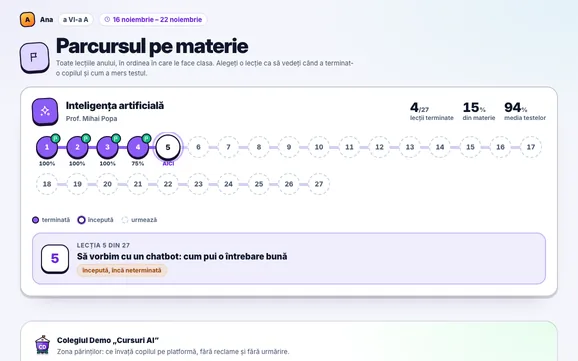
The “The path” page in the parent accountThe “The path” page in the parent account

The pathThe path in each subject

  • All the lessons of the year, in the order the class takes them: finished, started and still to come.
  • For each subject: the teacher, the lessons finished, the share of the subject and the test average.
  • Pick a lesson to see when it was finished, the first-try score, the best one and the tries.
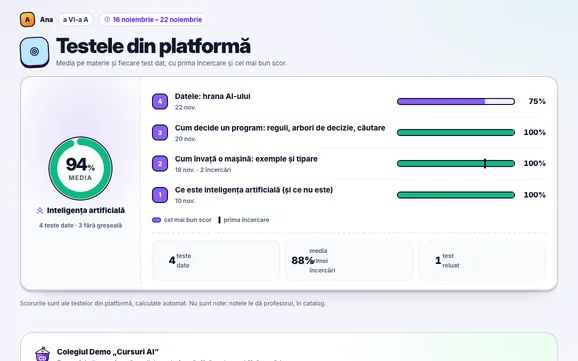
The “Tests” page in the parent accountThe “Tests” page in the parent account

TestsTests on the platform

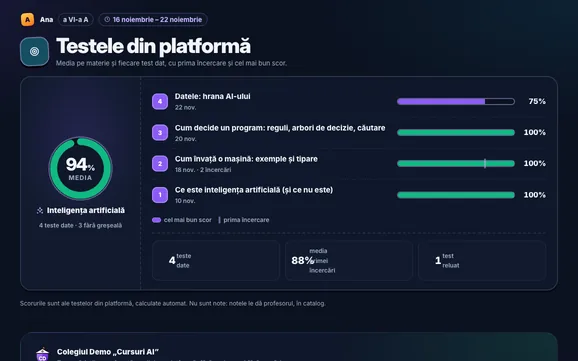
  • The average for each subject, how many tests had no mistake and every test taken.
  • The trend of the last 4 weeks: “rising”, “steady” or “falling”.
  • Scores are calculated automatically. They are not grades: grades come from the teacher.
The “Medals” page in the parent accountThe “Medals” page in the parent account

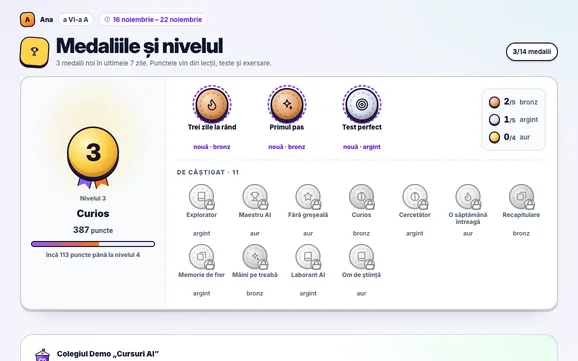
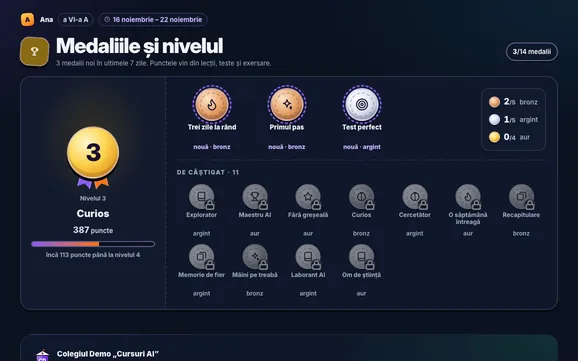
MedalsMedals and level

  • The level, with the name of the step, the points and how many are left to the next level.
  • The medals earned (bronze, silver, gold) and those still to earn, with a padlock: 14 medals, 7 levels.
  • Points come from lessons, tests and practice.
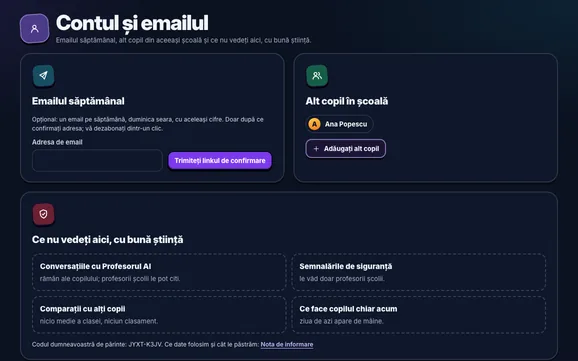
The “Account and email” page in the parent accountThe “Account and email” page in the parent account

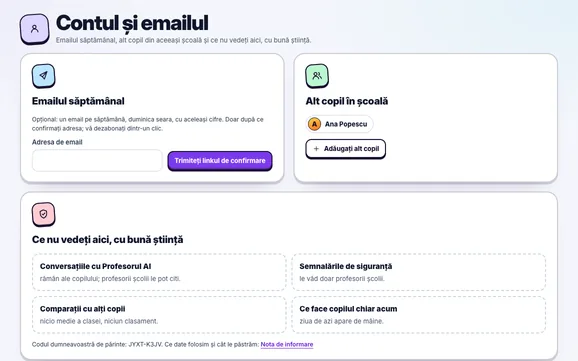
Account and emailThe email, another child, what you do not see

  • The weekly email: add your address, confirm it and stop it at any time; the address is then deleted.
  • “Another child at the school”: add a brother or sister with their own slip.
  • “What you do not see here, on purpose”, stated plainly; the parent code and what to do when the slip is lost.

And your child’s app: the Students page

The limits

What stays your child’s, what stays at school

Some things stay your child’s, on purpose. The account says so too.

  • The AI Teacher conversations and the notesThey stay your child’s; the school’s teachers can read the conversations.
  • Safety alertsOnly the school’s teachers see them: an alert can be about the family itself.
  • Comparisons with other childrenNo class average, no rankings.
  • What your child is doing right nowToday shows up tomorrow, with no sign-in times.

What the parent account does not do: these stay with the school.

  • MessagesNo messages to the teacher and no replies to announcements. Talk to the form teacher, as before.
  • The AI Teacher’s limitThe teacher sets it for the class: how many questions a day, or switching it off.
  • Your child’s dataExport and deletion go through the school. You can also write to contact@cursuri-ai.ro: we pass the request on to the school.
  • The full lessonsYour child goes through them. You see the summary, the new words and the quiz of every finished lesson.

Only if you ask for it: add your address in “Account and email” and confirm it from the link you receive (it works once, for 48 hours). Without confirmation you get nothing.

What it contains

  • Sunday evening, once a week.
  • For each child: the lessons finished, the learning minutes and the open assignments.
  • The new grades in the platform’s gradebook and the due dates of the open assignments (up to five).
  • A button to your child’s week, with the new words and the questions for home.

What it leaves out

  • Test scores and medals: they stay on the pages of the account.
  • Announcements: you read them in the app.
  • Anything about safety alerts: they stay with the school’s teachers.
  • Advertising. One click unsubscribes and deletes the address from the account.

Questions

Frequently asked questions

All the questions
How do I get the parent account?

The form teacher or a teacher of the class prints the parent slip from the app, with a code and a password, and sends it home through your child.

I lost the slip. What do I do?

Ask the form teacher for a new slip. The parent code stays the same, the password changes, and the old slip no longer opens anything.

Can both parents sign in?

Yes. The slip belongs to the family: the same code and password work on several phones and laptops.

I have two children at the same school.

Add the second one from “Account and email” → “Add another child”, with the code and password on their slip. For a child at another school, sign in separately, with the slip from there.

Why don’t I see today?

The week stops yesterday: today shows up tomorrow. The gradebook and the announcements are up to date. Lessons sometimes happen in class, on paper, and then they do not appear here.

Does my child see that I check the platform?

No. Your child gets no notification from the parent account. The school and your child do not see when you sign in; your visits do not appear in the school’s audit log.

Can I write to the teacher from the app?

No. Announcements marked “Also for parents” are read-only; for anything else, talk to the form teacher as before.

Do I have to pay anything?

No. The parent account is included in what the school pays for each student.

Another question?

Call us, write to us or use the form.

Would you like this at your child’s school?

Send the demo request with the school’s name, or show this page to the form teacher or the principal.

  • A demo for the management and the teachers
  • One hour of online training, included
  • The school creates the student accounts, in the app
The AI Teacher walks into the classroom, waves to the students and shows them the lesson book: the app’s welcome clipThe AI Teacher walks into the classroom, waves to the students and shows them the lesson book: the app’s welcome clip
The welcome clip students see in the app.
Book a demo